KoolBox Documentation
Install KoolBox
A complete, step-by-step install of the KoolBox private AI control panel on a Linux server you control — including a fully offline install for an isolated network.
Before you start
The commands on this page were run on a clean Ubuntu 24.04 LTS server and a clean RHEL 9.6 server, across releases 1.3.0, 1.3.1 and 1.3.2, and the blocks marked as output are what those servers actually printed — including where the two distributions behave differently, and where the product has a defect you have to work around. Debian, Rocky Linux, AlmaLinux and Fedora are supported by the packages but were not part of that run.
What was not exercised, and says so where it appears: a real certificate (needs public DNS), Method C (needs a separate database server), a genuinely disconnected host — both servers kept their SSH session, so resolving operating-system dependencies from local media is untested — a reboot to watch the disabled-at-boot defect bite, ARM, and on the licensing side offline activation and renewal, where online activation was carried out for real but the other two were only verified as far as the interface.
No prior experience with the product is assumed. Every command below is shown in full, with what you should expect to see and what to do if it does not happen.
You will need three things:
- A Linux server you control, with a user who can run
sudo. - A way to reach that server's terminal — SSH, or a console in your cloud provider's web interface.
- An activation code from Koolify, or — for an isolated network — an approved channel to exchange two small files with Koolify. Activation is covered on its own page, and a new installation gets a 3-day grace period, so you can install first.
Check your server is suitable
Supported operating systems
Scroll to see all columns →
| Family | Versions | Architecture |
|---|---|---|
| Ubuntu | 22.04 LTS, 24.04 LTS, 26.04 LTS | x86_64 |
| Debian | 12, 13 | x86_64 |
| RHEL / Rocky Linux / AlmaLinux | 9, 10 | x86_64 |
| Fedora | Current supported releases | x86_64 |
Not on the list? The installer stops and tells you, rather than installing something that cannot work. It names the family it detected, so you can see it guessed right.
No Red Hat subscription is needed on the RHEL family: on the verification run, every dependency — PostgreSQL, LibreOffice and Java 17 included — came from the image's own baseos and appstream repositories.
To check what you have, run:
cat /etc/os-release
uname -m
uname -m must print x86_64 (some tools call it amd64).
x86_64 only. aarch64 is a build target but nothing is published for it: the ARM repositories carry only the architecture-independent koolbox-full meta-package and no console package at all. So an install on an ARM server registers the repository, looks healthy, and then finds nothing to install. If uname -m reports aarch64, talk to Koolify before you begin rather than working through this page.Hardware
- Memory: 4 GB minimum, 8 GB recommended. This matters more than it sounds. Installing and upgrading unpacks several hundred megabytes, and on a 1 GB machine the operating system can terminate the package manager partway through, which leaves a half-installed package you have to repair by hand.
- Disk: 20 GB.
- PostgreSQL 13 or newer. Either on the same server (the installer can set this up for you) or reachable over the network — Amazon RDS, Azure Database for PostgreSQL, or a cluster you already run. RHEL 9 ships PostgreSQL 13 exactly — the minimum, with no margin, which is why releases before 1.3.0 had trouble there. Ubuntu 24.04 ships 16.
Check memory and disk with:
free -m          # look at the "total" column under Mem
df -h /          # look at the "Avail" column
Decide which package you need
There are two. Pick one now; you can change later, but it is easier to choose correctly.
Scroll to see all columns →
| Package | What it installs | Choose this when |
|---|---|---|
koolbox | The console only | PostgreSQL already runs somewhere else — RDS, Azure, an existing cluster, or a separate database server |
koolbox-full | The console plus a local PostgreSQL server and LibreOffice | Everything on one server. It creates and initializes the database for you |
koolbox-full. It is the single-server option and needs no database work from you.Network
Scroll to see all columns →
| What | Direction | Detail |
|---|---|---|
| Reaching the console | Inbound | TCP port 3000 by default (changeable), or 80/443 if you put a reverse proxy in front — see Domain and HTTPS. |
| Downloading the software | Outbound HTTPS | packages.koolify.ai |
| Activating a license online | Outbound HTTPS | The Koolify activation service |
Install
Choose one of the four methods below. Method A is right for almost everyone.
Method A — the one-line installer (recommended)
Log in to your server and run one of these. Everything on one server, including the database:
curl -fsSL https://packages.koolify.ai/install.sh | sudo sh -s -- --fullConsole only, because your database is elsewhere:
curl -fsSL https://packages.koolify.ai/install.sh | sudo shDownload it, then run it. The piped form works, but dnf's key-import prompt reads the same standard input that the shell is reading the script from, which produces a misleading error and swallows the rest of the script's own output.
curl -fsSL https://packages.koolify.ai/install.sh -o install.sh
sudo sh install.sh --full
Piped on RHEL, the key-import prompt consumes the script and you see this instead:
Importing GPG key 0x403BE624:
 Fingerprint: 9F1B A391 E54B 66E9 6F25 E3E1 17BB 084F 403B E624
Is this ok [y/N]: Error: Failed to download metadata for repo 'koolbox': repomd.xml GPG signature verification error: Bad GPG signature
The install still proceeds correctly — dnf install -y imports the key itself a moment later — so that Bad GPG signature line is expected and harmless. What you lose is the script's closing Installation finished. Check the service with: sudo koolboxctl status, which never prints. Running the same script from a file prints it.
What this does. The script detects your distribution, installs Koolify's package-signing key so your system can verify what it downloads, registers the Koolify package repository, and then hands over to your normal package manager. It contains no application code. After it has run once, updates are ordinary apt or dnf operations.
Useful options, added after -s -- in the piped form, or straight after the script name in the two-step form. --full and --version work together:
Scroll to see all columns →
| Option | Effect |
|---|---|
--full | Install koolbox-full (adds the local PostgreSQL server) |
--version 1.3.1 | Install a specific release instead of the newest available |
--repo-only | Register the repository but install nothing yet |
The commands above are fine: a plain one-line install with no --version installed the newest release cleanly on Ubuntu 24.04, exit 0. This is narrower than that — asking --version for anything but the newest release fails outright, and the error it prints is not true: the version it calls unavailable is published and installable.
The script pins only the package you named, so apt is left trying to satisfy koolbox-full's exact-version dependency with the newest koolbox, and gives up:
The following packages have unmet dependencies:
 koolbox-full : Depends: koolbox (= 1.3.0-1) but 1.3.1-1 is to be installed
                Recommends: libreoffice-core but it is not going to be installed
                Recommends: libreoffice-writer but it is not going to be installed
E: Unable to correct problems, you have held broken packages.
ERROR: Version 1.3.0 is not available. List versions with: apt-cache madison koolbox-full
The working form on Debian and Ubuntu is two steps: register the repository, then name both packages at the version you want. The -1 package revision is part of the version string and is required — koolbox=1.3.0 is not a valid version:
sudo sh -c "$(curl -fsSL https://packages.koolify.ai/install.sh)" -- --full --repo-only
sudo apt-get install -y koolbox=1.3.0-1 koolbox-full=1.3.0-1
That completed in 1 m 12 s on a clean server. On the RHEL family the one-line form with --version does work, because dnf resolves the pinned dependency rather than giving up:
curl -fsSL https://packages.koolify.ai/install.sh -o install.sh
sudo sh install.sh --full --version 1.3.0--repo-only exits 0 and signs off with Repository configured. Install with: sudo dnf install koolbox, but it leaves the repository unusable: rpm --import populates rpm's keyring, not dnf's, so every later dnf call against the repository — including as root — fails with repomd.xml GPG signature verification error: Bad GPG signature. Run sudo dnf -y makecache --repo koolbox once and it behaves. The full install path is unaffected, because dnf install -y imports the key itself.What you should see. Part-way through the run — about 110 lines before the end on Ubuntu, at line 1209 of a 1319-line install — the console package's own post-install step prints a boxed banner with everything you need:
Setting up koolbox (1.3.0-1) ...
Installing KoolBox 1.3.0
✓ Generated JWT signing secret.
✓ Generated database password for role 'koolbox'.
✓ Created PostgreSQL role 'koolbox'.
✓ Created database 'koolbox'.
✓ Ensured PostgreSQL extensions (unaccent, pg_trgm).
✓ Enabled scram-sha-256 password authentication for 'koolbox' on koolbox (loopback only).
✓ Verified database connectivity as 'koolbox'.
✓ Configuration complete.
Starting koolbox.service to apply schema changes...
Waiting for the service to become ready (up to 120s)...
✓ Service is ready (version 1.3.0, schema 1.3.0).
✓ Database schema is at version 1.3.0.

────────────────────────────────────────────────────────────────────────────
KoolBox Private AI Control Panel 1.3.0 is running.

  Console        http://203.0.113.10:3000
  Sign in        admin@local.koolbox / ChangeMe123!   ← change immediately

Next steps
  1. Sign in and set a new administrator password.
  2. Activate your license: Settings → License & Activation.
     A 3-day grace period starts now; online and offline (air-gapped)
     activation are both supported.
  3. Register your private AI nodes and deploy models.

Administration
  koolboxctl status              health, versions, database, backups
  koolboxctl backup              on-demand database backup
  systemctl restart koolbox      apply configuration changes
  journalctl -u koolbox -f       live logs

Optional: install LibreOffice to enable PDF/ODT document generation.
────────────────────────────────────────────────────────────────────────────needrestart, so it has scrolled well out of sight by the time the run ends. The installer's actual final words carry no URL and no credentials, which reads like a failure and is not one:Installation finished. Check the service with:
sudo koolboxctl status
Future upgrades use the system package manager:
sudo apt update && sudo apt install --only-upgrade koolbox koolbox-fullScroll back for the banner, or just run sudo koolboxctl status, which tells you the same things and is covered under Confirm the installation worked. Three details in that banner are worth knowing before you follow it:
- The
ConsoleURL may not be reachable. It is whateverhostname -Ireturns, which on a cloud server is the private address — see First sign-in. Settings → License & Activationdoes not exist. The License page is at Administration → License. That section holds exactly six items — Groups / Users, Import / Export, License, Security, Settings and Updates — and nothing called “License & Activation” anywhere. The banner's wording is a product bug, still present on 1.3.2, not a different build.- Ignore the LibreOffice line on a
--fullinstall. It is not optional and it is not missing:koolbox-fullrecommendslibreoffice-coreandlibreoffice-writer, so apt is installing them later in the same run — around 120 MB of LibreOffice and X11. What PDF output actually needs is one restart.
On the RHEL family the shape is the same but the wording differs slightly, and the run ends with Complete! followed by the same two closing blocks. A clean RHEL 9.6 server was up and healthy in 49 to 52 seconds, twice.
✗ PostgreSQL is installed on this host but is not accepting connections. and a four-command recovery block part-way through, because the console package's setup step runs before koolbox-full has initialized the cluster. Searching the log for ✗ will therefore “find a failure” on a server that is working perfectly. Judge the install by sudo koolboxctl status, which is the point of the next section but one.If you installed koolbox on its own, without --full, the run instead prints a boxed KoolBox is installed but not yet started banner. That is the expected message when PostgreSQL is not on this server, and Method C takes it from there. On a --full install you may see that same box go past mid-run, printed before the database has been set up — in that case it is stale and you should not follow it.
Method B — register the repository by hand
Use this if your policy forbids piping a script to a shell. The result really is identical to Method A — on Ubuntu the two produce a byte-for-byte identical /etc/apt/sources.list.d/koolbox.sources.
Ubuntu and Debian:
sudo apt update
sudo apt install -y curl gnupg ca-certificates

# Install Koolify's signing key
curl -fsSL https://packages.koolify.ai/koolbox.asc \
  | sudo gpg --dearmor -o /usr/share/keyrings/koolbox-archive-keyring.gpg
sudo chmod 0644 /usr/share/keyrings/koolbox-archive-keyring.gpg

# Register the repository
sudo tee /etc/apt/sources.list.d/koolbox.sources >/dev/null <<'EOF'
Types: deb
URIs: https://packages.koolify.ai/apt
Suites: stable
Components: main
Architectures: amd64
Signed-By: /usr/share/keyrings/koolbox-archive-keyring.gpg
EOF

sudo apt update
sudo apt install -y koolbox-full       # or: koolbox
Leave Architectures: amd64 as it is. Changing it to arm64 does not give you an ARM install — that index carries no console package — see ARM servers.
RHEL, Rocky Linux, AlmaLinux and Fedora:
sudo curl -fsSL -o /etc/yum.repos.d/koolbox.repo \
  https://packages.koolify.ai/koolbox.repo
sudo rpm --import https://packages.koolify.ai/koolbox.asc
sudo dnf install -y koolbox-full       # or: koolbox
These are only for a first install. If you have already run Method A, both steps are redundant and harmless: /etc/yum.repos.d/koolbox.repo already exists and re-downloading it only adds a comment header — the [koolbox] stanza is byte-identical — and rpm --import on an already-imported key prints nothing and exits 0.
sudo dnf install koolbox-full does not stop and tell you it is already installed — it silently upgrades you to the newest version in the repository, service restart and schema migration included. If that is not what you want, name the version you have, or use --repo-only in Method A and install nothing.Method C — using a database on another server
If you installed koolbox and PostgreSQL is elsewhere, the service is deliberately left stopped until you tell it where the database is. Nothing is broken; it is waiting for you.
On your database server, create the database, a user, and the two extensions the product needs for keyword search:
CREATE USER koolbox WITH PASSWORD 'choose-a-strong-password'; CREATE DATABASE koolbox OWNER koolbox; \c koolbox CREATE EXTENSION IF NOT EXISTS unaccent; CREATE EXTENSION IF NOT EXISTS pg_trgm;On the KoolBox server, open the configuration file:
sudo nano /etc/koolbox/koolbox.envSet these five values, then save (
Ctrl+O,Enter) and exit (Ctrl+X):DB_HOST=db.example.internal DB_PORT=5432 DB_NAME=koolbox DB_USER=koolbox DB_PASSWORD=choose-a-strong-passwordIf your password contains a
#or a$, wrap the whole value in double quotes.Verify the connection and start up:
sudo koolboxctl setup      # checks the connection, enables the extensions
sudo koolboxctl migrate    # creates the tables and starts the service
A host name containing a dot turns on TLS to the database automatically, which is what managed services such as RDS require.
This is the one install method that was not exercised on the verification servers, which both ran their database locally. The commands are the same ones koolbox-full runs for you; what we could not measure is a managed provider's own behavior.
Method D — installing with no internet access
The packages have no network dependencies beyond ordinary operating-system packages, so they install fine on an isolated server. The work is in the download, and the two distributions behave so differently here that they are worth reading separately.
https://packages.koolify.ai/updates/latest.json, with its detached signature alongside at latest.json.sig. It names the current version and lists every artifact with a size and a SHA-256. Take the version from there and fetch the matching files: a manifest and a package from different releases will fail verification, and the published set moves faster than you would expect — two releases shipped during a single afternoon of testing.Debian and Ubuntu. Download on any connected machine of the same distribution — no sudo needed, it writes into the current directory:
apt-get download koolbox koolbox-fullGet:1 https://packages.koolify.ai/apt stable/main amd64 koolbox amd64 1.3.2-1 [79.3 MB]
Get:2 https://packages.koolify.ai/apt stable/main amd64 koolbox-full all 1.3.2-1 [4186 B]
Fetched 79.3 MB in 1s (95.1 MB/s)That is two files and nothing else: apt-get download does no dependency resolution at all. If your isolated server does not already have PostgreSQL and LibreOffice, they have to come from your own distribution media or local mirror. We could not verify that last part — both verification servers kept an SSH session, so their operating-system repositories stayed reachable, and resolving OS dependencies on a genuinely disconnected host is the one step on this page nobody has measured.
RHEL family. dnf can resolve the whole tree for you, which is a real advantage — and it needs root, and the bundle it produces needs one correction before it will install:
sudo dnf download --resolve --destdir ./koolbox-offline \
koolbox-1.3.0 koolbox-full-1.3.0 # 146 files, 341 MB, about 6 secondsdnf download --resolve koolbox koolbox-full silently fetches the newest published release rather than the one you are running — observed on a 1.3.0 host, which produced 1.3.2 files with no warning. An operator building a bundle “of what we run” gets something else. Name the version on both packages, as above.--resolve pulls postgresql twice, from two different RHEL streams, and the local install then refuses the entire set with cannot install both postgresql-13.23-6.el9_8.x86_64 … and postgresql-13.22-1.el9_6.x86_64. Delete the newer one. Deleting the older one does not work, because postgresql-contrib-13.22 pins postgresql = 13.22-1.el9_6 exactly:
# dnf resolves two versions of postgresql from two streams and the local
# install then refuses the whole set. Keep the one that matches
# postgresql-contrib and delete the other:
ls postgresql-*.rpm
rm -f postgresql-13.23-6.el9_8.x86_64.rpm      # keep 13.22, it matches -contrib
146 files is about 341 MB to carry across, and roughly 1.1 GB once installed — the two numbers sit next to each other in dnf's own transaction summary and are easy to mix up:
Transaction Summary
==============================================================================
Install  145 Packages

Total download size: 339 M
Installed size: 1.1 Gsudo it first fails on the KoolBox repository with a completely misleading repomd.xml GPG signature verification error: Bad GPG signature, because the signing key is cached under root-owned /var/cache/dnf and an unprivileged dnf cannot import it. Get past that and your distribution's own repositories fail too, with Curl error (58) … could not load PEM client certificate … Permission denied, because that client certificate is root-only. The two failures are sequential, not alternatives, and neither is a signature problem — both are permissions.Then copy the files across by whatever transfer method your organization approves, and install from them locally. Debian and Ubuntu:
sudo apt-get install -y ./koolbox_*.deb ./koolbox-full_*.debThis is silent — no warnings at all, 16 to 18 seconds, verified with the Koolify host blocked outright. What does warn is the step before it, if you refresh your package lists on a host that cannot reach the repository:
W: Failed to fetch https://packages.koolify.ai/apt/dists/stable/InRelease  Could not connect to packages.koolify.ai:443 ...
W: Some index files failed to download. They have been ignored, or old ones used instead.
That warning is expected on an isolated server and has no effect on a local install. RHEL family — here the --disablerepo is not optional:
sudo dnf install --disablerepo=koolbox ./koolbox-*.rpm ./koolbox-full-*.rpmIf the KoolBox repository is registered — and it is, on any server installed from it — dnf tries to refresh its metadata before it looks at your local files, and aborts there. On an isolated network that refresh cannot succeed, so disabling that one repository for that one command is what makes the install work.
Name koolbox and koolbox-full in every command, as the steps above do. It is what the installer itself prints, and on an isolated server it is the difference between working and not: koolbox-full declares Depends: koolbox (= <its own exact version>), so with no repository to fetch the console from, naming only the meta-package leaves a dependency nothing can satisfy and both package managers stop.
If you deliberately want the console alone, with your database elsewhere, name only koolbox — that is Method C, not an accident.
# Debian / Ubuntu, exit 100
The following packages have unmet dependencies:
 koolbox-full : Depends: koolbox (= 1.2.8-1) but 1.2.7-1 is to be installed
E: Unable to correct problems, you have held broken packages.

# RHEL family
Error:
 Problem: conflicting requests
  - nothing provides koolbox = 1.2.8-1 needed by koolbox-full-1.2.8-1.noarch from @commandline
With the repository still reachable, that same single-package command is not refused — the package manager quietly downloads the missing half over the network, which on a server you believe to be isolated is the opposite of what you want. That is the other reason to carry both files and name both.
Then license the installation with offline activation, and keep it current with offline updates, which from 1.3.0 are a single verified command.
Removing and reinstalling
sudo dnf remove koolbox koolbox-full on the RHEL family removes 138 packages and frees about 1.1 GB on 1.3.0 and later, and it leaves PostgreSQL, its data directory, the koolbox role and the koolbox database alone. Measured: no postgresql line appears anywhere in the transaction, and afterwards all four PostgreSQL packages are still installed with the service active and enabled. On Debian and Ubuntu, apt remove never proposed touching the database engine.
The same command on a pristine 1.2.8 host removed 145 packages, among them postgresql, postgresql-contrib, postgresql-private-libs and all 23 MB of postgresql-server — because dnf treated the engine as an unused dependency. The data directory survived, but the engine that reads it did not, and local RPMs could then no longer satisfy their own dependencies.
Fixed from 1.3.0: the koolbox-full scriptlet marks the engine as user-installed, so dnf stops considering it removable, and upgrading an old host is enough to earn the protection — on a pristine 1.2.8 server, moving to 1.3.0 dropped the removal from 145 packages to 138. If you are still on an older release, read the removal list before confirming it, or upgrade first.
What a removal leaves behind, on both distributions:
Scroll to see all columns →
| Path | After dnf remove / apt remove |
|---|---|
/etc/koolbox/koolbox.env | Kept, untouched |
/var/lib/koolbox/ | Kept — backups, staged packages and the recorded version |
/var/lib/pgsql/data | Kept (the RHEL data directory; Debian keeps its own under /var/lib/postgresql) |
/opt/koolbox | Emptied apart from about 28 KB of image cache — 256 MB before, 28 KB after |
/usr/bin/koolboxctl | Removed |
/usr/lib/systemd/system/koolbox.service | Removed |
To remove everything, including the data, that is an explicit decision:
sudo rm -rf /opt/koolbox /etc/koolbox /var/lib/koolbox
sudo rm -rf /var/lib/pgsql        # only if you want the database gone as well
A remove followed by a reinstall preserves everything that was kept, byte for byte: the same configuration file, the same installation identifier, the same admin user, identical row counts and the existing backups. Neither koolboxctl setup nor koolboxctl migrate is needed — the koolbox-full package does both itself.
koolboxctl status reports State : active (disabled at boot) and systemctl is-enabled koolbox prints disabled, so the next reboot comes up with no console and nothing warns you in between. Run sudo systemctl enable koolbox. Fresh installs and ordinary in-place upgrades are unaffected; only a removal does this. We confirmed the state on 1.3.2 but did not reboot a server to watch it fail.One more thing worth knowing: installing only koolbox, without koolbox-full, leaves the service stopped on purpose — Service was not running — left stopped. Start it with: systemctl start koolbox.service.
How long this takes
Scroll to see all columns →
| Operation | Ubuntu 24.04 | RHEL 9.6 |
|---|---|---|
--full install on a clean server, including PostgreSQL and LibreOffice | 1 m 12 s | 49–52 s |
| Package-manager upgrade, one release to another | 15 s | 23 s |
koolboxctl update, guided, including backup and restart | 22 s | — |
koolboxctl rollback (8 runs) | 20–21 s | — |
koolboxctl update --offline | 17–19 s | — |
| Applying an update from the console | ~23 s online, ~25 s offline | — |
| Downloading the packages for an offline install | 1 s (2 files, 79.3 MB) | 6 s (146 files, 341 MB) |
| Installing from local package files | 16–18 s | 44 s |
| Removing the product | — | 7 s (138 packages) |
koolboxctl update --check, online then blocked | 0.5 s / 0.03 s | — |
| Backup of a small database | < 1 s | < 1 s |
| Service restart until it reports ready | 12–15 s | ~5 s |
setsebool -P httpd_can_network_connect 1 | — | 2 s |
Round figures: one to two minutes for a single-server --full install and well under a minute for an upgrade. Treat those as an indication rather than a guarantee: roughly 80 MB of console has to arrive first, and both of these servers pulled it at 36 to 95 MB/s from a content edge in their own region, so a slower link moves every figure in the table. Where a cell reads —, that operation was exercised on the other distribution only.
The product's own estimate for the console outage during an update — “ roughly 30 to 90 seconds” — is deliberately conservative. Every apply measured here finished in 17 to 25 seconds.
RHEL 9 on 1.2.8 and earlier — the database password mismatch
Releases up to 1.2.8 left a koolbox-full install on RHEL 9 and its rebuilds with a console that could never authenticate to its own database. It is fixed, properly rather than by rewording: the installer now raises the cluster's password hashing before it creates the role, so the two halves cannot disagree. Two clean 1.3.0 installs on stock RHEL 9.6 came up healthy in 49 and 52 seconds with no manual steps.
This section is for anyone still on 1.2.8 or earlier — how to recognize it, and how to get out of it.
Two lines in the install output are new in 1.3.x, and the first one is the fix:
✓ Cluster password_encryption set to scram-sha-256 (was md5).
✓ Enabled scram-sha-256 password authentication for 'koolbox' on koolbox (loopback only).
PostgreSQL is still 13.22 and RHEL's own postgresql.conf still defaults to md5; the override is written to postgresql.auto.conf, which is where you can see it:
$ sudo -u postgres psql -Atc "SHOW password_encryption"
scram-sha-256

$ sudo cat /var/lib/pgsql/data/postgresql.auto.conf
# Do not edit this file manually!
# It will be overwritten by the ALTER SYSTEM command.
password_encryption = 'scram-sha-256'

$ sudo grep -n koolbox /var/lib/pgsql/data/pg_hba.conf
1:# koolbox: password authentication for the control panel (managed by koolboxctl)
2:host    koolbox    koolbox    127.0.0.1/32    scram-sha-256
3:host    koolbox    koolbox    ::1/128         scram-sha-256
4:# koolbox: end of the koolboxctl-managed block
How to tell you are affected
On 1.2.8 and earlier, dnf exits 0 and both packages install, so nothing announces itself as a failure. The only sign is a warning roughly 500 lines before the end of a 560-line run, and the run still signs off cheerfully:
✓ Enabled password authentication for 'koolbox' on koolbox (loopback only).
✗ The database is still not reachable with the configured credentials.
  Verify manually:  PGPASSWORD=… psql -h 127.0.0.1 -U koolbox -d koolbox -c 'SELECT 1'
  Then finish with: sudo koolboxctl migrate
WARNING: local PostgreSQL setup did not complete.
         Then finish with: sudo koolboxctl setup && sudo koolboxctl migrate
The service never starts, so the console does not answer at all — connection refused, not an error page:
$ sudo koolboxctl status
  Application version : 1.2.8
Service
  systemd unit        : koolbox.service
  State               : failed (enabled at boot)
Database
  Connectivity        : unreachable
Health
  No response from http://127.0.0.1:3000/api/health

$ curl -i http://127.0.0.1:3000/api/health
curl: (7) Failed to connect to 127.0.0.1 port 3000: Connection refused
The cause is that RHEL 9 ships PostgreSQL 13, whose default password_encryption is md5, while those releases wrote scram-sha-256 into pg_hba.conf. The role, the database and both extensions were created correctly; only the two ends disagreed about the hash, so authentication could never succeed. Debian and Ubuntu ship PostgreSQL 15 or 16, where scram-sha-256 is already the default, which is why this was confined to the RHEL family.
The way out: upgrade
Upgrading repairs it on its own. The 1.3.x package raises the cluster setting, re-hashes the role's password to match the file it already has, verifies the connection and starts the service — no manual SQL, nothing to type in. Reproduced twice from a genuine 1.2.8 failure, in 22 seconds:
sudo dnf upgrade koolbox koolbox-full     # this alone usually fixes it
sudo koolboxctl status                    # confirm: reachable / active

# only if the service is still down:
sudo koolboxctl setup && sudo koolboxctl migrate
Upgrading KoolBox unknown → 1.3.0
Added new setting: UPDATE_MANIFEST_URL
✓ Merged 1 new setting(s) into /etc/koolbox/koolbox.env.
Service was not running — left stopped. Start it with: systemctl start koolbox.service
Running scriptlet: koolbox-full-1.3.0-1.noarch 2/4
✓ Cluster password_encryption set to scram-sha-256 (was md5).
✓ Re-hashed the password of role 'koolbox' under scram-sha-256.
Database 'koolbox' already exists — left untouched.
✓ Ensured PostgreSQL extensions (unaccent, pg_trgm).
pg_hba.conf already grants scram-sha-256 password access to 'koolbox'.
✓ Verified database connectivity as 'koolbox'.
✓ Configuration complete.
Starting koolbox.service to apply schema changes...
✓ Service is ready (version 1.3.0, schema 1.3.0).koolboxctl setup does repair the mismatch in place and exits 0 — but it leaves the service failed and says nothing about it, so you are left with a working database behind a dead console. Its own output ends ✓ Configuration complete. while systemctl is-active koolbox still reports failed. sudo koolboxctl migrate is what starts it.$ sudo koolboxctl setup
✓ Cluster password_encryption set to scram-sha-256 (was md5).
✓ Re-hashed the password of role 'koolbox' under scram-sha-256.
Database 'koolbox' already exists — left untouched.
✓ Ensured PostgreSQL extensions (unaccent, pg_trgm).
pg_hba.conf already grants scram-sha-256 password access to 'koolbox'.
✓ Verified database connectivity as 'koolbox'.
✓ Configuration complete.
$ systemctl is-active koolbox
failed
$ sudo koolboxctl migrate
Starting koolbox.service to apply schema changes...
✓ Service is ready (version 1.3.0, schema 1.3.0).koolboxctl setup reports PostgreSQL role 'koolbox' already exists — password left unchanged. and exits 2 — it refused by design to re-key an existing role, which is exactly what needed to change. setup --auto does the same. That is why the remedy is to upgrade rather than to re-run setup. If you genuinely cannot move off 1.2.8, the cluster setting and the role password have to be changed by hand before setup and migrate will work:# last resort, only if you cannot upgrade off 1.2.8
sudo -u postgres psql -c "ALTER SYSTEM SET password_encryption = 'scram-sha-256';"
sudo systemctl restart postgresql
DBPASS=$(sudo sed -n 's/^DB_PASSWORD=//p' /etc/koolbox/koolbox.env | tr -d '"')
sudo -u postgres psql -c "ALTER ROLE koolbox WITH PASSWORD '$DBPASS';"
sudo koolboxctl setup && sudo koolboxctl migrateConfirm the installation worked
sudo koolboxctl statusThis prints the version, whether the service is running, the database it is using, a health summary and your most recent backups. You want to see the service active and the database reachable:
KoolBox Private AI Control Panel
  Application version : 1.3.2
  Install directory   : /opt/koolbox
  Configuration       : /etc/koolbox/koolbox.env
  Console URL         : http://127.0.0.1:3000

Service
  systemd unit        : koolbox.service
  State               : active (enabled at boot)

Database
  Host                : localhost:5432
  Database / user     : koolbox / koolbox
  Connectivity        : reachable

Health
  Endpoint            : http://127.0.0.1:3000/api/health
  Reported status     : ok
  Schema version      : 1.3.2
  Uptime (s)          : 15

Backups
  koolbox-1.3.0-20261017-102604.sql.gz  (20K)

Logs: journalctl -u koolbox.service -f
State tells you two separate things: whether the service is running now, and whether it will come back after a reboot. If it says active (disabled at boot), run sudo systemctl enable koolbox — see Removing and reinstalling.
Two more quick checks:
sudo koolboxctl version                        # version numbers only
curl http://127.0.0.1:3000/api/health # a small JSON health reportkoolbox 1.3.2
bundled node v22.23.3
database schema 1.3.2version is the one command that needs no sudo. The health report looks like this, and the "status":"ok" is the part that matters:
{"status":"ok","version":"1.3.2","schemaVersion":"1.3.2","database":"connected","uptimeSeconds":15}It needs no authentication, which is deliberate so that monitoring can use it; the rest of the API does require a session.
On a server that has never had a backup taken, the Backups block reads none — expected, not a fault. A package-manager install or upgrade does not take one for you; the update tooling does.
koolboxctl status is the one thing worth trusting. The install log legitimately contains alarming ✗ lines on a healthy server, on both distributions, because package setup steps run in an order that briefly looks wrong.If the service will not start, or you cannot reach the console in a browser, work through Troubleshooting.
Restart once if you want PDF output
On a koolbox-full install, the package manager starts the console while it is setting up the koolbox package — before LibreOffice has been unpacked. So a brand-new server logs this even though LibreOffice is installed a few seconds later:
[KoolBox] LibreOffice not found — document generation will output DOCX only (no PDF conversion)
[KoolBox]   Ubuntu/Debian: sudo apt install libreoffice-core libreoffice-writer
One restart is all it needs, and the log then says so:
sudo systemctl restart koolbox[KoolBox] LibreOffice detected: LibreOffice 24.2.7.2 420(Build:2) — PDF document generation availableDo not install LibreOffice again in response to that first message — it is already there. If PDFs still come out as DOCX after a restart, see Documents come out as DOCX.
First sign-in
Open the console
In a browser, go to:
http://YOUR-SERVER-IP:3000Replace YOUR-SERVER-IP with your server's address. On a server on your own network, hostname -I prints it and the first address shown is usually the right one.
hostname -I returns something like 172.31.0.42 while the address your browser needs is the public or elastic IP shown in your provider's console. Use that one, and make sure the security group allows inbound TCP 3000 to it. The installer's own banner has the same problem, because it builds its Console line from exactly that command — it was measured on both verification servers and both printed an address no browser outside the network could reach.Sign in with the credentials that are the same on every new installation. The form labels the first field Email, not Username:
Email     admin@local.koolbox
Password  ChangeMe123!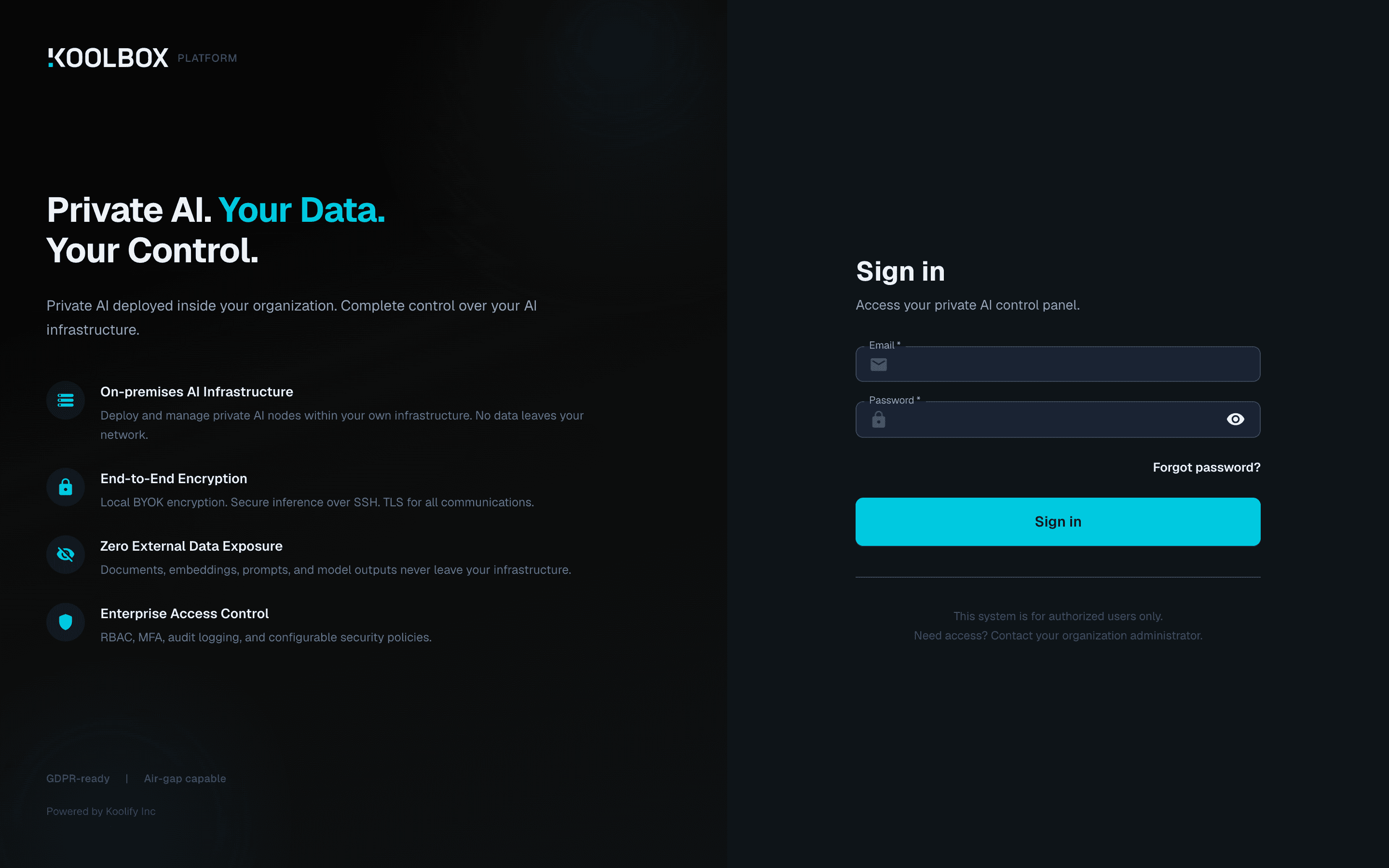
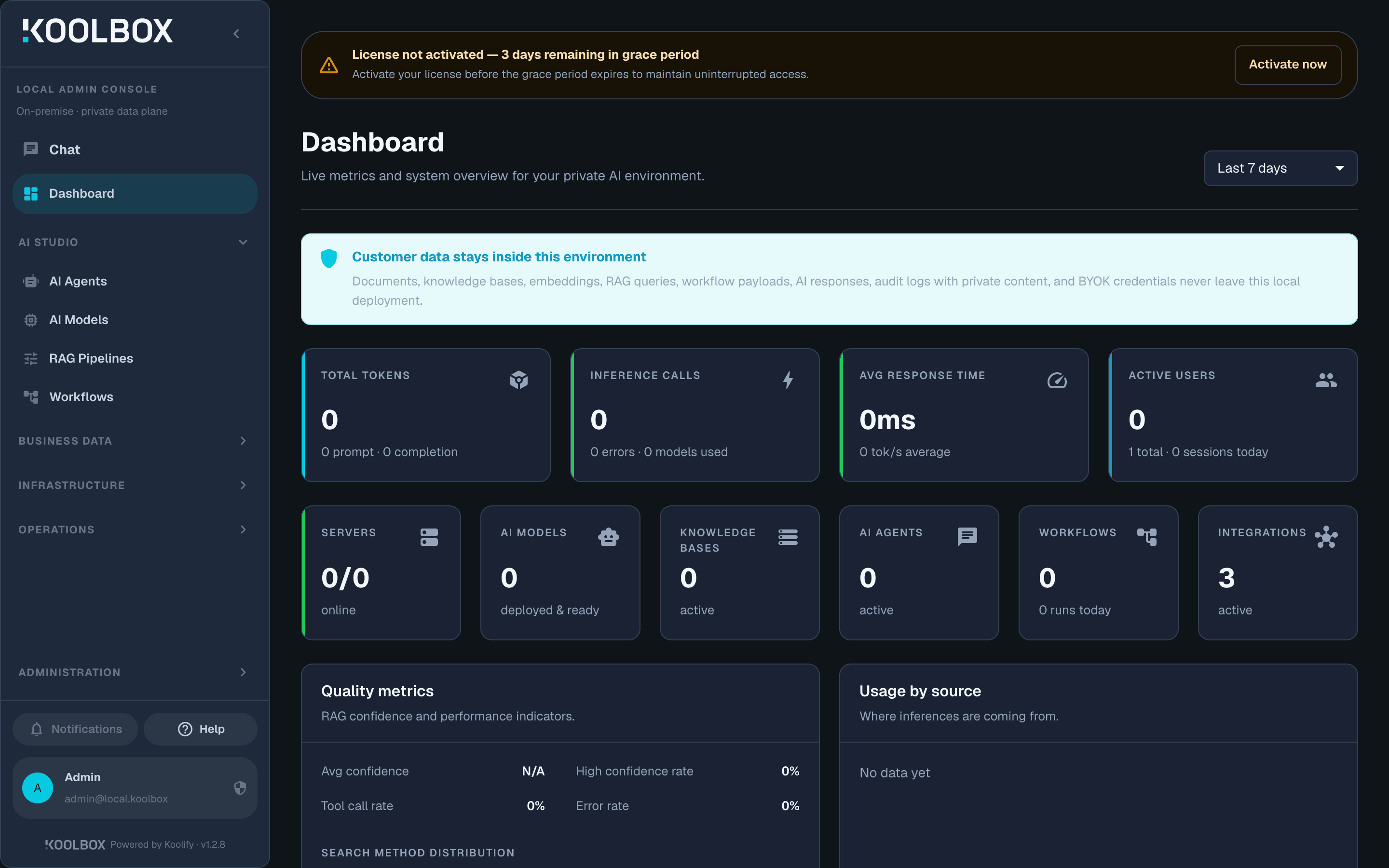
Change the password immediately
- Click your name at the bottom of the left sidebar. A centered My Account dialog opens, with Appearance, Change Password, Enable 2FA and Sign Out.
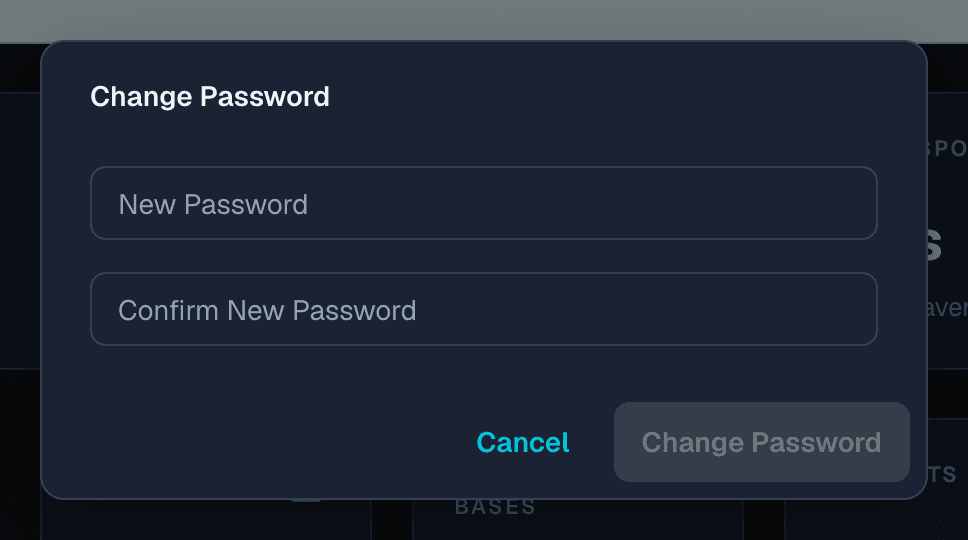
- Choose Change Password.
- Enter the new password twice — it does not ask for the current one — and confirm.
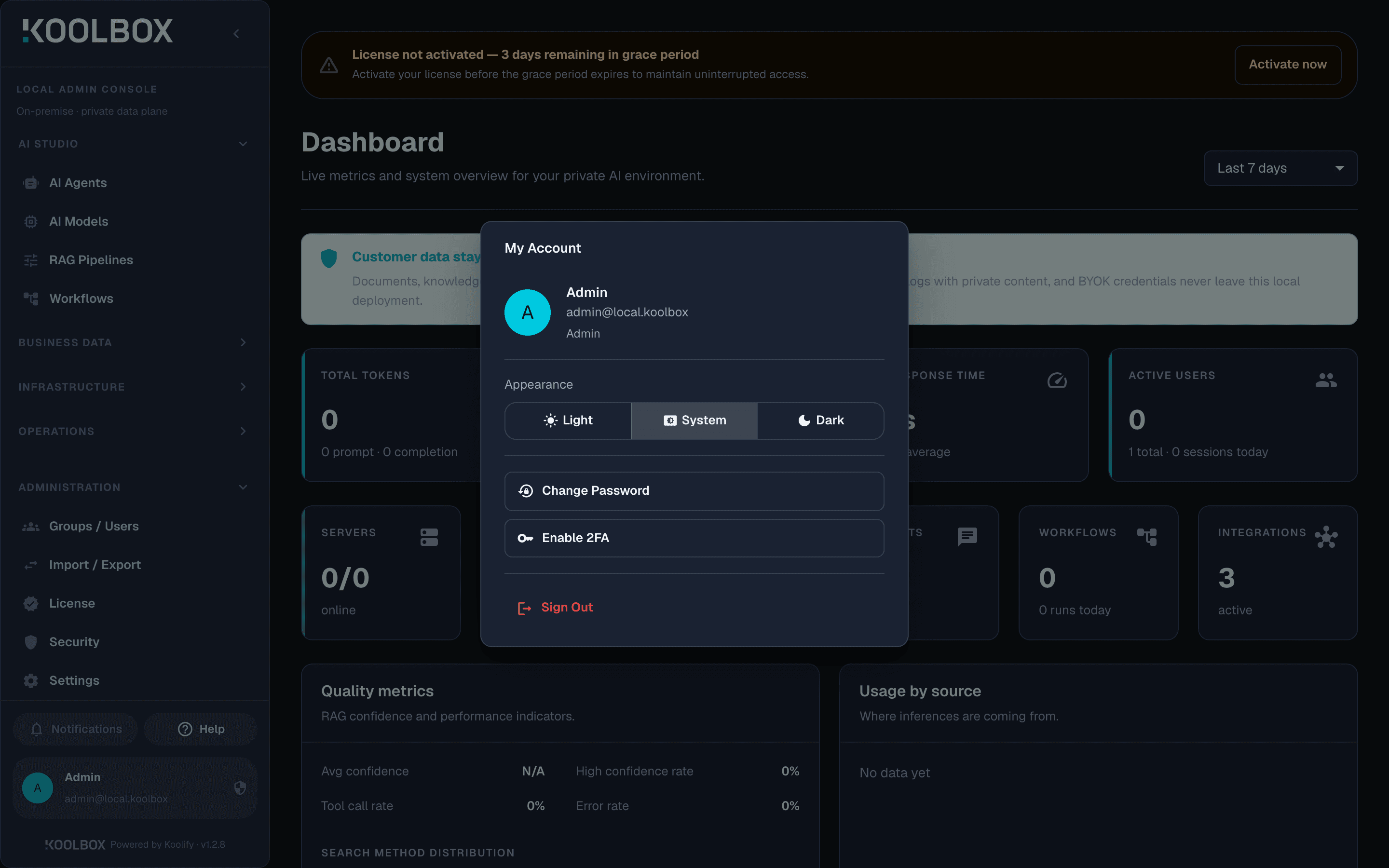
Turn on two-factor authentication
Strongly recommended for every administrator.
- Click your name at the bottom of the sidebar again to reopen My Account.
- Choose Enable 2FA. This leaves the console for a dedicated full page at
/auth/2fa/setup, laid out like the sign-in screen — that is expected, not a lost session. - Scan the QR code with Google Authenticator, 1Password, Authy, or any other authenticator app. If you cannot scan it, use the Manual setup key shown beside it — but use its copy button rather than typing what you see, as the key is visually truncated in its box.
- Click I have scanned the QR code, type the 6-digit code from your app, and click Verify and activate.
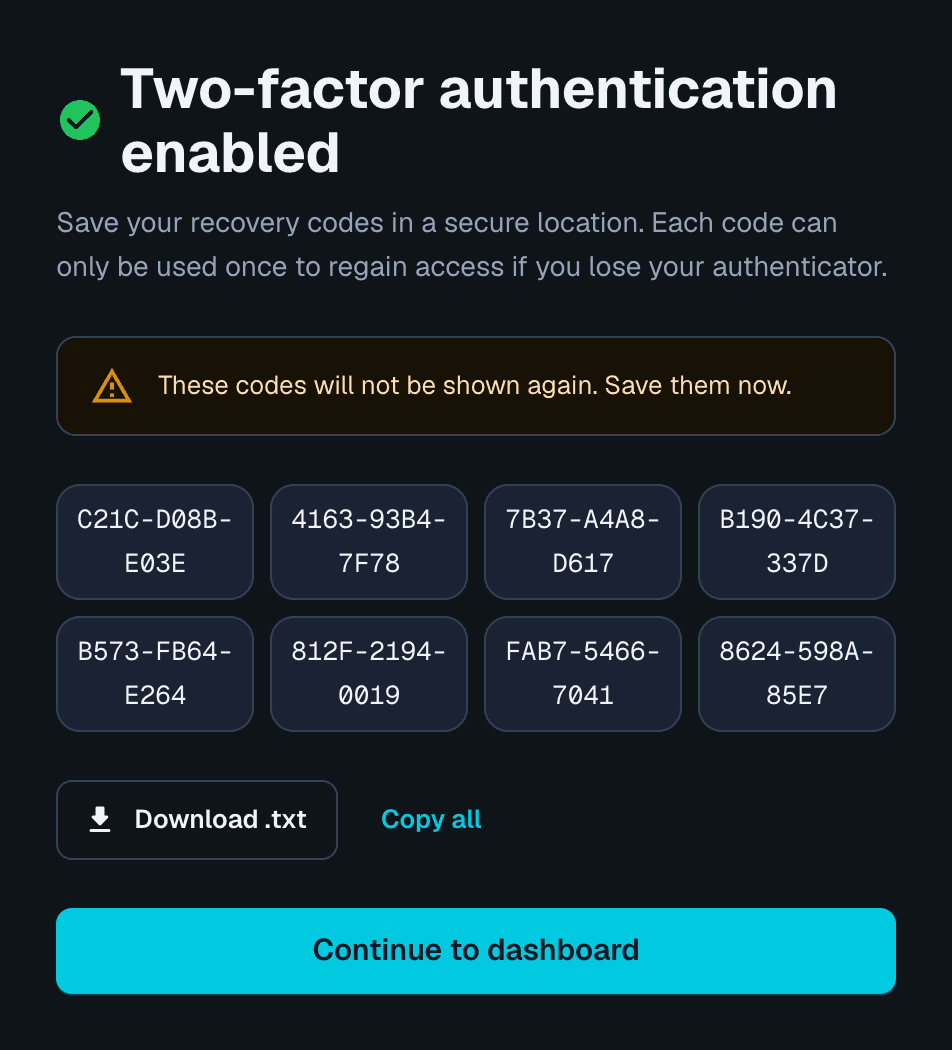
- Save the eight recovery codes it then shows you, somewhere safe. They come in
XXXX-XXXX-XXXXform with Download .txt and Copy all buttons, and are shown only once. Each one can be used a single time to get back in if you lose your authenticator. Then click Continue to dashboard.

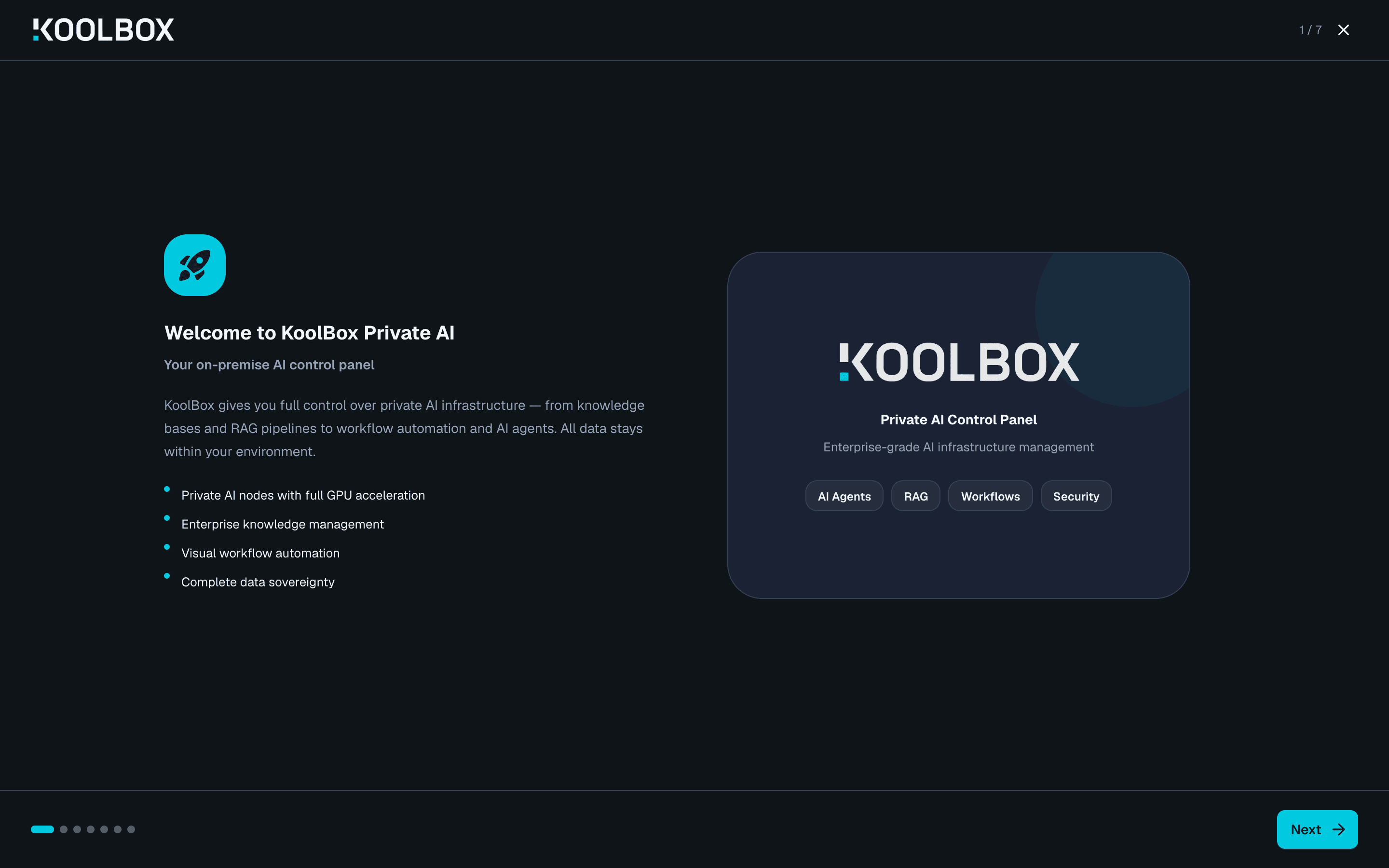
The welcome walkthrough
Until someone completes or dismisses it, each new administrator account gets a seven-step introduction on sign-in: Welcome, Choose Your Operating Mode, AI Agents & Knowledge Bases, Workflows & Automation, Security & Compliance, Guides & Documentation, and Activate Your License. You can step through it or close it.
The only step that changes how the product behaves is Choose Your Operating Mode:
Scroll to see all columns →
| Mode | What it means |
|---|---|
| Assisted | Kai, the AI configuration assistant, is available to help you build knowledge bases, workflows and agents. Your data and all AI inference still stay on your own infrastructure — Kai only helps you configure the system. |
| Air-gapped | Full manual control, no assistant in the interface. Choose this if your network is isolated or policy requires it. The product makes no outbound calls in this mode. |
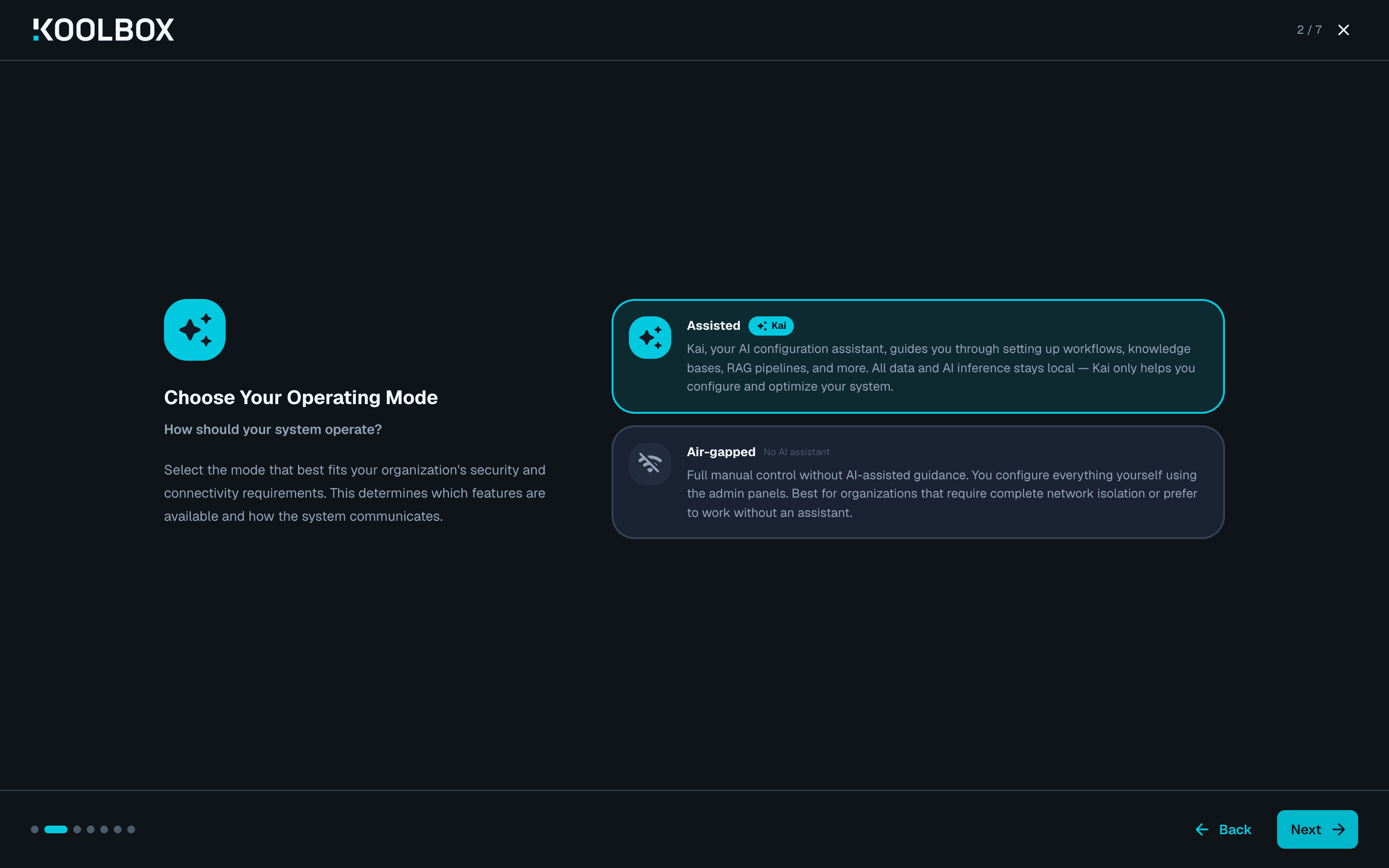
You can change this at any time afterwards under Administration → Settings → Deployment, without reinstalling anything.
Put the console on a domain with HTTPS
Optional, and recommended for anything beyond a private network. The console speaks plain HTTP on port 3000 and does not handle certificates itself, so you put a reverse proxy in front of it.
Make the console listen only on the server itself:
sudo sed -i 's/^HOSTNAME=.*/HOSTNAME=127.0.0.1/' /etc/koolbox/koolbox.env sudo systemctl restart koolboxInstall nginx and create the site. The configuration is identical on every distribution; only the file it goes in differs. Debian and Ubuntu:
sudo apt install -y nginx sudo tee /etc/nginx/sites-available/koolbox >/dev/null <<'EOF' server { listen 80; server_name console.example.com; client_max_body_size 100M; # document uploads can be large location / { proxy_pass http://127.0.0.1:3000; proxy_http_version 1.1; proxy_set_header Host $host; proxy_set_header X-Real-IP $remote_addr; proxy_set_header X-Forwarded-For $proxy_add_x_forwarded_for; proxy_set_header X-Forwarded-Proto $scheme; proxy_set_header Upgrade $http_upgrade; proxy_set_header Connection "upgrade"; proxy_buffering off; # without this, AI replies arrive all at once proxy_read_timeout 600s; # long AI tasks would otherwise time out } } EOF sudo ln -s /etc/nginx/sites-available/koolbox /etc/nginx/sites-enabled/ sudo rm /etc/nginx/sites-enabled/default # see the note below sudo nginx -t && sudo systemctl reload nginxRemove the stock default site on Debian and Ubuntu. Both distributions ship an enableddefaultsite that claims every request not matching anotherserver_name, so until you remove it any test by IP address — or any request whoseHostheader does not yet sayconsole.example.com— gets nginx's welcome page instead of the console. That looks like a broken proxy and is not one.RHEL, Rocky Linux, AlmaLinux and Fedora — same block, written to
conf.d, and there is no symlink step:sudo dnf install -y nginx sudo tee /etc/nginx/conf.d/koolbox.conf >/dev/null <<'EOF' server { listen 80; server_name console.example.com; client_max_body_size 100M; # document uploads can be large location / { proxy_pass http://127.0.0.1:3000; proxy_http_version 1.1; proxy_set_header Host $host; proxy_set_header X-Real-IP $remote_addr; proxy_set_header X-Forwarded-For $proxy_add_x_forwarded_for; proxy_set_header X-Forwarded-Proto $scheme; proxy_set_header Upgrade $http_upgrade; proxy_set_header Connection "upgrade"; proxy_buffering off; # without this, AI replies arrive all at once proxy_read_timeout 600s; # long AI tasks would otherwise time out } } EOF sudo nginx -t && sudo systemctl enable --now nginxsites-available does not exist on RHEL.Neither
/etc/nginx/sites-availablenor/etc/nginx/sites-enabledis present, so the Debian commands fail outright rather than quietly doing nothing:teeexits 1 and the symlink step fails withln: failed to create symbolic link '/etc/nginx/sites-enabled/': No such file or directory. RHEL'snginx.confincludes/etc/nginx/conf.d/*.confinstead, which is why the file goes there and nothing needs enabling.One side effect, and it is the exact mirror image of Debian's:
conf.dis included before RHEL's stockserverblock, so yours becomes the default server on port 80 and requests arriving with no matchingHostheader also reach the console. On Debian the stock site shadows yours; on RHEL yours shadows the stock one. Add your own catch-all server block first if that matters to you.The two settings with comments are easy to leave out and cause confusing symptoms later: without
proxy_buffering offthe assistant's replies appear in one lump instead of progressively, and without the longerproxy_read_timeouta long task ends in a gateway error.On RHEL, Rocky Linux, AlmaLinux and Fedora, let nginx talk to port 3000. SELinux is enforcing on a stock install and
httpd_can_network_connectis off, so nginx is not permitted to open a connection to the console:getsebool httpd_can_network_connect # off, on a stock RHEL install sudo setsebool -P httpd_can_network_connect 1A 502 here is SELinux, not KoolBox.With a correct configuration and the console healthy on
127.0.0.1:3000, the proxy still answers502 Bad Gatewayuntil that boolean is set. The giveaway is(13: Permission denied)in nginx's error log — a refused connection would say connection refused instead:/var/log/nginx/error.log [crit] 25357#25357: *1 connect() to 127.0.0.1:3000 failed (13: Permission denied) while connecting to upstream, client: 127.0.0.1, server: console.example.com, request: "GET /api/health HTTP/1.1", upstream: "http://127.0.0.1:3000/api/health", host: "console.example.com"sudo ausearch -m avc -ts recent </dev/nullconfirms it from the other side — redirect its input, or with no matching records it sits waiting on your terminal and looks hung:Expected output type=AVC msg=audit(1791952386.820:3211): avc: denied { name_connect } for pid=25357 comm="nginx" dest=3000 scontext=system_u:system_r:httpd_t:s0 tcontext=system_u:object_r:ntop_port_t:s0 tclass=tcp_socket permissive=0Setting the boolean takes about three seconds and the proxy returns HTTP 200 with the real health JSON immediately afterwards. No restart is needed.
Check the proxy before DNS points anywhere. Ask for the console by name, from the server itself:
curl -I -H 'Host: console.example.com' http://127.0.0.1/A working proxy sends you to the sign-in page:
Expected output HTTP/1.1 307 Temporary Redirect location: /auth/login X-Powered-By: Next.jsWithout the
Hostheader — or with the Debian default site still enabled — you get the distribution's welcome page instead, which says nothing about KoolBox:Expected output HTTP/1.1 200 OK Server: nginx/1.24.0 (Ubuntu) Content-Type: text/html Content-Length: 615Get a certificate:
sudo apt install -y certbot python3-certbot-nginx      # Debian / Ubuntu
sudo dnf install -y certbot python3-certbot-nginx      # RHEL family

sudo certbot --nginx -d console.example.com
Certbot edits the same file, adds the HTTPS redirect, and sets up automatic renewal. This is the one step on this page that was not exercised during verification, because it needs a publicly resolvable DNS name.
Open ports 80 and 443 — in your cloud provider's security group, and in the host firewall if there is one. Port 80 must stay reachable for certificate renewal even though no real traffic is served on it.
# Debian / Ubuntu
sudo ufw allow 80/tcp && sudo ufw allow 443/tcp

# RHEL family
sudo firewall-cmd --permanent --add-port=80/tcp --add-port=443/tcp
sudo firewall-cmd --reload
For direct access on port 3000 instead, substitute
3000/tcp. On a stock cloud image there may be no host firewall at all: on the RHEL 9.6 image used for verificationfirewalldwas not installed andiptableshad an empty, all-ACCEPTruleset, so both ports were reachable with no firewall work whatsoever and only the cloud security group mattered. Check withrpm -q firewalldorsudo ufw statusbefore assuming a command failed.
Downloads reference
Where everything lives
Everything is served from https://packages.koolify.ai. No account, password or token is needed to download — your entitlement is enforced by the license inside the product, not by the download. Every URL listed on this page was fetched during verification and all of them returned 200.
Scroll to see all columns →
| What | Link |
|---|---|
| Installer script | https://packages.koolify.ai/install.sh |
| Signing key (ASCII) | https://packages.koolify.ai/koolbox.asc |
| Signing key (binary) | https://packages.koolify.ai/koolbox.gpg |
| Ready-made DNF repository file | https://packages.koolify.ai/koolbox.repo |
| Signed release manifest | https://packages.koolify.ai/updates/latest.json |
| Manifest signature | https://packages.koolify.ai/updates/latest.json.sig |
The manifest is the authoritative statement of what the current release is. It carries the version, the release date, the oldest version that can upgrade directly to it, and every artifact with its size and SHA-256 — and its signature is what the offline update path checks before it installs anything.
Getting the latest version
The recommended way is always through your package manager, because it verifies signatures for you:
sudo apt update && sudo apt install --only-upgrade koolbox koolbox-full
sudo dnf upgrade koolbox koolbox-full
To see what the newest version is before installing it, use the commands under Check whether a newer version exists.
Downloading a specific file directly
The layout is predictable, so you can fetch a single file over HTTPS if you need to. For a version X.Y.Z:
Scroll to see all columns →
| File | Path |
|---|---|
| Console, Debian/Ubuntu | /apt/pool/main/koolbox_X.Y.Z-1_amd64.deb |
| Meta-package, Debian/Ubuntu | /apt/pool/main/koolbox-full_X.Y.Z-1_all.deb |
| Console, RHEL family | /rpm/x86_64/koolbox-X.Y.Z-1.x86_64.rpm |
| Meta-package, RHEL family | /rpm/x86_64/koolbox-full-X.Y.Z-1.noarch.rpm |
Example:
curl -fLO https://packages.koolify.ai/apt/pool/main/koolbox_1.3.1-1_amd64.debhttps://packages.koolify.ai/updates/latest.json and build the path from that. Releases land faster than documentation does — two shipped during a single afternoon of testing — and a package fetched today alongside a manifest fetched tomorrow will fail checksum verification, which is exactly what that verification is for.Only x86_64 console packages exist. The arm64 and aarch64 paths hold the meta-package alone, which cannot be installed on its own, so there is no ARM download to find here — see ARM servers.
The repository indexes, which list every available version, are at /apt/dists/stable/main/binary-amd64/Packages and /rpm/x86_64/repodata/repomd.xml.
Verifying what you downloaded
Packages and repository indexes are signed with Koolify's key. If you installed through apt or dnf, signatures are checked on every download automatically and you need do nothing further. To check the fingerprint yourself:
curl -fsSL https://packages.koolify.ai/koolbox.asc | gpg --show-keyspub rsa4096 2026-09-15 [SCEA] [expires: 2031-09-14]
9F1BA391E54B66E96F25E3E117BB084F403BE624
uid Koolify Inc Package Signing <packages@koolify.ai>The fingerprint must be exactly 9F1BA391E54B66E96F25E3E117BB084F403BE624. It is the same key the installer imports, and the same one dnf offers to import as 0x403BE624.
What to do next
- Activate your licenseA new installation has 3 days of full access. Activate online in four clicks, or exchange two files for an isolated network.
- Keep KoolBox up to dateCheck your version, apply updates from the terminal or the console, take backups, and roll back if you need to.
- Troubleshooting and command referenceFixes for the problems that actually come up, plus every koolboxctl command and the files it touches.
- Build something with itStep-by-step guides for knowledge bases, RAG pipelines, workflows and AI agents.
- Get help from KoolifyStuck on an install, running ARM hardware, or need an activation code? Tell us what you are seeing.
Want This Running on Your Infrastructure?
Talk to us about the deployment architecture that fits your environment — private cloud, on-premise, or completely air-gapped.